
How to invoice an Office Max expense?
Step-by-step guide to invoice Office Max expenses.
We give you two options to invoice expenses at Office Max: the first is through the Office Max website (estimated time: 8 minutes), and the second through Zumma Financial (estimated time: 2 minutes):
Option 1: Office Max invoicing portal
Step 1: Go to the Office Max invoicing portal
Step 2: Enter your ticket information**, reference number and amount, and add your RFC.**
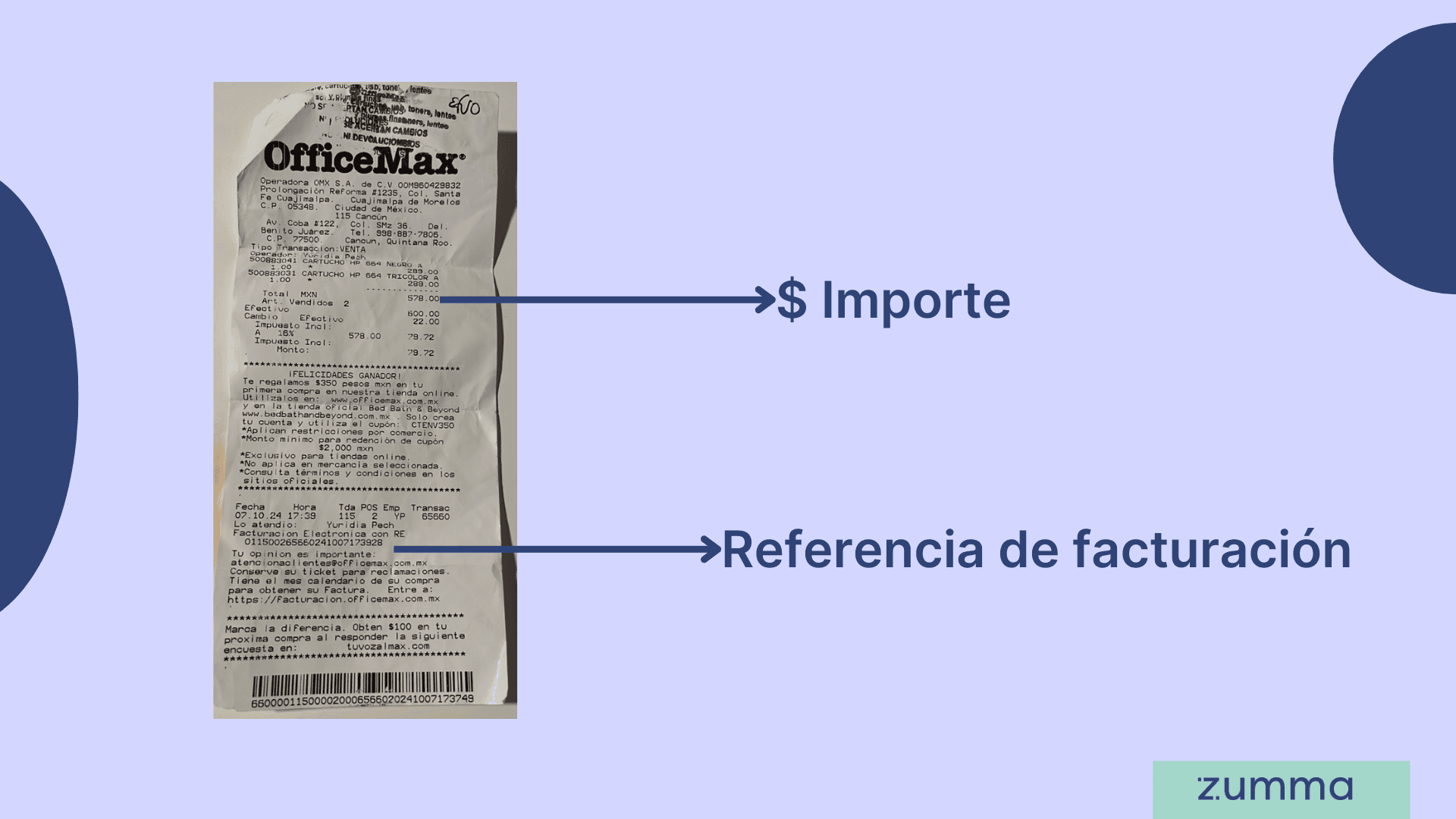
Step 3: If you've invoiced before, your tax information will load automatically; if not, enter your tax information: RFC, business name, tax regime, CFDI use, and zip code and your email address.
Step 4: Review the information and if it's correct, click Accept. You'll be able to download your invoice in PDF and XML, and you'll also receive it in your email.
And that's it! This is how you can get your invoice through the Office Max invoicing portal
Option 2: Invoice through Zumma Financial
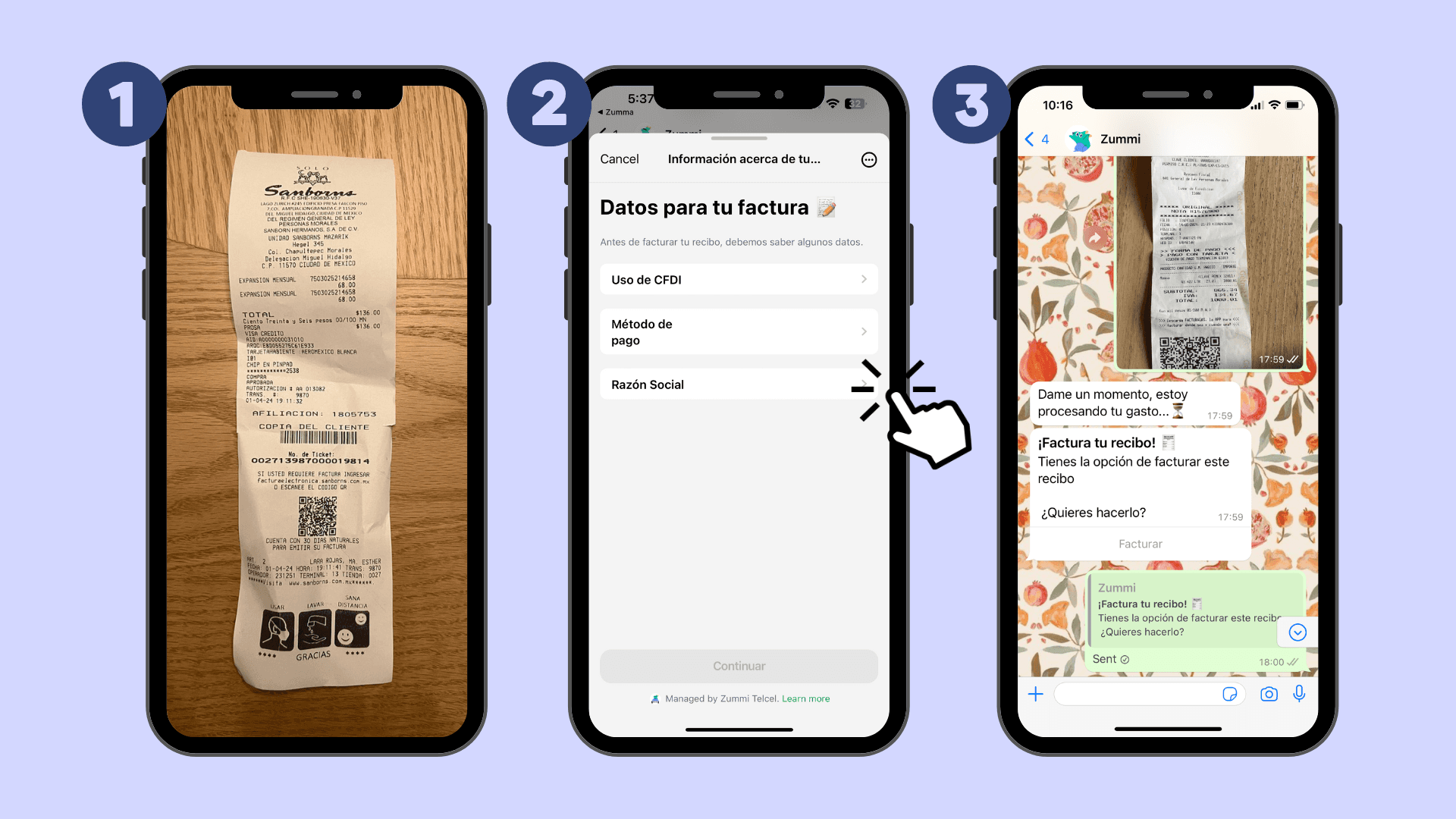
If you're already a Zumma customer and have already entered your tax information in your account profile, just follow these steps:
Step 1: Send a photo of your ticket via WhatsApp
Step 2: Choose the CFDI use and the payment method that should appear on your invoice
Step 3: Wait to receive your invoice via WhatsApp and email
If you're not yet a Zumma user and want to start automatically invoicing your expenses via WhatsApp, request a demo of our service here.
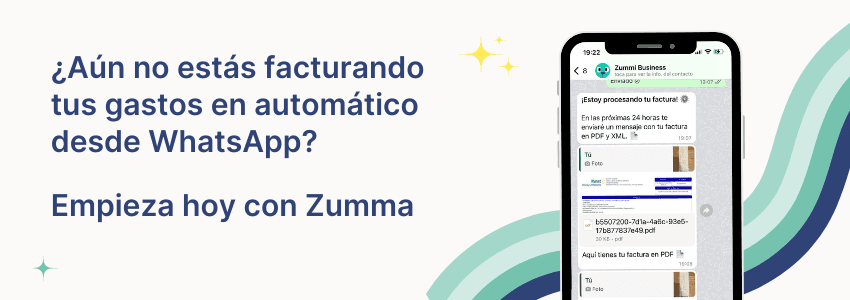
Start invoicing your expenses from WhatsApp
To invoice receipts from other stores, see the guide how to invoice receipts in Mexico: data, portals and deadlines.
More guides to invoice pharmacies, office supplies and department stores
Find more guides on invoicing company expenses in the Zumma blog.
ZUMMA FOR BUSINESS
Automate invoices on WhatsApp with Zumma.
Get your team's expense invoices from WhatsApp, without chasing receipts.
Start for free →